
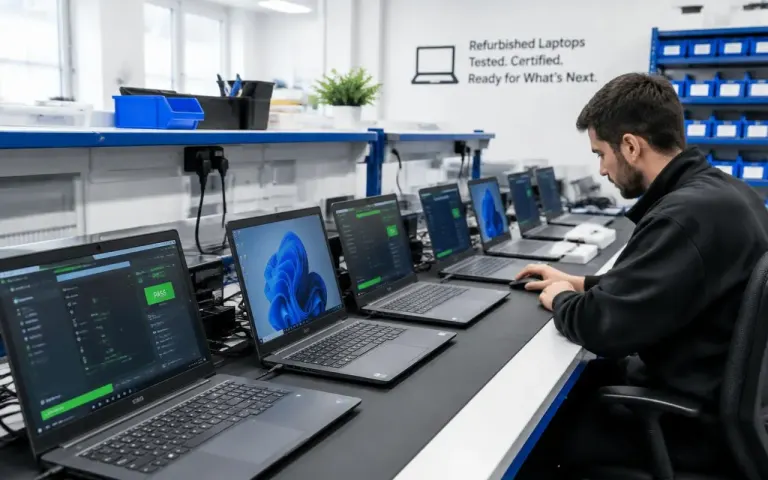
How To Choose a Refurbished Laptop
Battery health, screen, keyboard, warranty and the questions to ask before you pay.
Maintenance guide
Seven free checks you can do yourself on a slow Windows PC or laptop, and how to tell when an SSD or RAM upgrade is actually worth paying for.
Quick answer
Before paying for repairs, restart and update Windows, turn off unneeded startup apps, check Task Manager for what is using the processor, memory or disk, free up drive space, scan for malware, tidy your browser and clean dust from the vents. If it is still slow, an SSD or more RAM usually helps more than any software.
A slow computer does not always need an expensive repair. Often the cause is something you can fix yourself in an afternoon: too many programs starting with Windows, a drive that is nearly full, or a fan clogged with dust. Sometimes it really is the hardware, and then it helps to know which upgrade will make a difference.
Work through these seven fixes in order. They are free, safe and written for Windows 10 and 11. Back up important files before making big changes, just in case.
It sounds too simple, but it works. Choosing “Shut down” on many Windows computers does not fully reset the system, because a feature called Fast Startup saves part of it to resume quickly. Choose Restart instead, which starts Windows fresh.
Then open Settings and run Windows Update, including optional driver updates, and update the laptop maker’s own support app if it has one. Updates fix bugs that can slow things down.
On a laptop, check the power setting too. In Windows 11 it is under Settings, System, Power & battery, then Power mode; in Windows 10, click the battery icon. A battery-saving mode deliberately slows the computer down, so choose a balanced or best performance mode when you are plugged in.
Many programs quietly add themselves to startup, so the computer is busy before you have even opened anything. To trim the list:
In Task Manager, open Processes and sort by CPU, Memory and Disk in turn. You will often find one program using far more than its share, such as a stuck update, a browser with dozens of tabs or a cloud sync tool. Closing or updating it may solve the problem.
The Performance tab tells you even more. It shows how much memory you have and how much is in use, and whether your drive is an SSD or an HDD.
| What you see | What it usually means | What helps |
|---|---|---|
| Disk at or near 100% on an HDD | The hard drive is the bottleneck | An SSD upgrade |
| Memory regularly almost full | Not enough RAM for your workload | Fewer open apps, or more RAM |
| CPU high with one program | That program is stuck or misbehaving | Close, update or reinstall it |
| CPU high with nothing open | Background updates, or possible malware | Wait for updates, then run a scan |
| Fast at first, slow after a few minutes | Overheating and thermal throttling | Clean the vents and fans |
Swipe the table sideways to see every column
Windows needs free space for updates and temporary files, and a nearly full drive slows everything down. Open Settings, then System, then Storage to see what is taking up room and to remove temporary files. Turn on Storage Sense to clear them automatically.
Uninstall programs you no longer use, empty the Downloads folder, and move large photo and video collections to an external drive or cloud storage.
Sudden slowness, pop-ups, a browser that opens strange pages, or a fan that roars when you are not doing anything can all point to malware. Open Windows Security and run a full scan. For stubborn infections, the Microsoft Defender Offline scan restarts the computer and scans before Windows loads.
Don’t install two antivirus programs at once, as they can conflict and slow things down further. If the scan keeps finding threats, or your browser is still being redirected, a proper virus and OS clean-up is the safer route.
For many people the browser is where the computer feels slow. Every open tab uses memory, and some extensions run all the time. Close tabs you are not using, remove extensions you don’t recognise or need, and keep the browser updated. Chrome and Edge both include memory-saving features that put inactive tabs to sleep.
When a processor gets too hot, it slows itself down to stay safe. Dust-clogged fans and blocked vents are the usual reasons, especially in dusty, hot weather. Keep a laptop on a hard, flat surface rather than a bed or cushion, and make sure air can flow around a desktop.
If you have tried all seven fixes and the computer is still slow, the hardware is probably the limit. The two upgrades that make the biggest difference are:
One warning: a hard drive that has become very slow, freezes when opening files or makes clicking noises may be failing rather than just old. Copy your important files somewhere safe before anything else, and read about data recovery and backups if it is already struggling.
An upgrade makes less sense on a very old computer whose processor cannot run Windows 11. In that case, a checked refurbished computer may be better value than upgrading. Our upgrade service checks compatibility first and quotes before ordering any parts, and you can book a check if you would like us to find the bottleneck for you.
Most do little that Windows cannot do itself, and some add pop-ups, bundled software or worse. Windows' own Storage settings, Task Manager and Windows Security cover the useful parts for free, without the risk.
It can, if the slowness comes from years of clutter, unwanted software or a damaged installation. It won't help if the hardware is the bottleneck, such as an old hard drive. Back up your files first, because some reset options remove them.
There is no exact figure, but a nearly full drive slows Windows down and can stop updates from installing. Keep a comfortable margin free by moving photos and videos to an external drive or cloud storage and removing programs you no longer use.
For light browsing and documents, 8 GB works. Many browser tabs, video calls and office apps together can fill it quickly, though, so 16 GB is more comfortable for most home and office users. Task Manager's Memory graph shows whether you regularly run out.
Processors reduce their speed to protect themselves when they get too hot, which is called thermal throttling. Dust in the fan, blocked vents or dried-out thermal paste are common causes. Cleaning and fresh thermal paste often restore the lost speed.
Bring it in for a check. We find the real bottleneck and quote before any clean-up or upgrade, with a 90 days on parts and labour warranty on the parts we fit.