

Laptop Screen Repair vs Replacement
When a new panel is the smart fix, and when the money is better spent on a new laptop.
Repair guide
How to tell a worn-out battery from a faulty charger, check your battery's real health in two minutes, and know when it is time for a replacement.
Quick answer
The five main signs of a failing laptop battery are much shorter runtime, sudden shutdowns or jumping percentages, refusing to charge fully, a bulging case or trackpad, and unusual heat or a system warning. Check its health with a battery report. If it is swollen, stop using the laptop and have the battery removed safely.
powercfg /batteryreport shows design versus actual capacity in minutes.A laptop battery does not fail overnight. It loses a little capacity with every charge cycle, and most people only notice when the laptop dies in the middle of a class or a client call. Lithium-ion cells also age faster when hot or kept at 100% for long periods, which is how many laptops live: plugged in on a warm desk all day.
The good news is that a failing battery nearly always gives warning signs. Here are the five we see most often at our repair counter in North Dum Dum, what each one usually means, and what to do about it.
If a laptop that once lasted a full afternoon now needs the charger after an hour, the battery has probably lost a large part of its capacity. Every battery has a design capacity, measured in milliwatt-hours (mWh). As it ages, the charge it can actually hold, called the full charge capacity, falls.
First rule out the easy culprits: brightness turned right up, dozens of browser tabs, or an update running in the background. Task Manager (Windows) or Activity Monitor (Mac) shows which apps use the most power. If runtime is still poor with normal use, the battery is the likely cause.
A healthy battery drains smoothly: 60%, 59%, 58%. A worn one often drops from 40% to 12% in a few minutes, or switches off while still showing 20% or 30%. Aged cells struggle to deliver enough power when the laptop suddenly asks for more, for example when you open a heavy app or a game. The voltage dips and the laptop shuts down to protect itself.
Sudden shutdowns can corrupt the file you are working on, so save often and back up important work until the battery is replaced.
“Plugged in, not charging”, or a battery that stops at 80%, has several possible causes; only one is a dying battery.
First, check whether a battery-care setting is switched on. Many manufacturers include one, such as Lenovo’s Conservation Mode or ASUS Battery Health Charging, with similar options in Dell and HP software. These deliberately stop charging at around 60–80% to slow wear. That is a feature, not a fault.
If no such setting is on, try a different wall socket and, if you can, a known-good charger of the correct wattage. If the laptop only charges when the cable is held at a certain angle, the problem is a worn charging port, not the battery. If it still refuses to charge with a good charger, the battery or its charging circuit needs checking.
Never ignore this one. Degraded, damaged or overheated lithium-ion cells can produce gas and swell. In a laptop that shows up as a trackpad that no longer clicks properly or sits higher than the palm rest, a keyboard that bows upward, a gap opening along the edge of the case, or a laptop that rocks on a flat table.
Some warmth while charging is normal. A battery area that becomes too hot to rest your hand on, especially when the laptop is idle, is not. The cause may be a failing cell, a blocked fan or a charging fault, and heat speeds up battery wear.
Your laptop may also warn you directly. On a MacBook, Battery Health in System Settings changes to “Service Recommended” when capacity has dropped significantly. Many Windows laptops show a similar warning in the manufacturer’s own app, such as Lenovo Vantage or MyASUS.
You can see the real numbers in about two minutes.
powercfg /batteryreport and press Enter.battery-report.html file it creates (the location is shown on screen) in your browser.Open System Settings, then Battery, and look at Battery Health. For the cycle count, hold the Option key, open the Apple menu, choose System Information, then select Power.
Divide the full charge capacity by the design capacity to get a rough health percentage. As a rule of thumb, below about 80% you will notice shorter runtime, and below about 60% most people find it frustrating. There is no fixed cut-off: replace it when it no longer gets you through your day, and immediately if there is any sign of swelling.
Many “battery problems” turn out to be something else:
| Symptom | Likely cause | What to do |
|---|---|---|
| Runtime far shorter than before | Worn cells with reduced capacity | Run a battery report and plan a replacement |
| Shuts down at 20–30% | Aged cells cannot handle the load | Save often, back up, replace the battery |
| “Plugged in, not charging” | Battery-care limit, faulty charger or failing battery | Check settings, test another charger, then get it checked |
| Charges only at a certain cable angle | Loose or worn charging port | Charging port repair, not a new battery |
| Trackpad or case bulging | Swollen battery | Stop using it; have the battery removed safely |
| No power at all, even on the charger | Charger, port, battery or motherboard | Needs a proper diagnosis |
Swipe the table sideways to see every column
For a laptop that is otherwise working well, a new battery is one of the best-value repairs you can make. It brings back the runtime without changing anything else, and your files and settings stay exactly as they are.
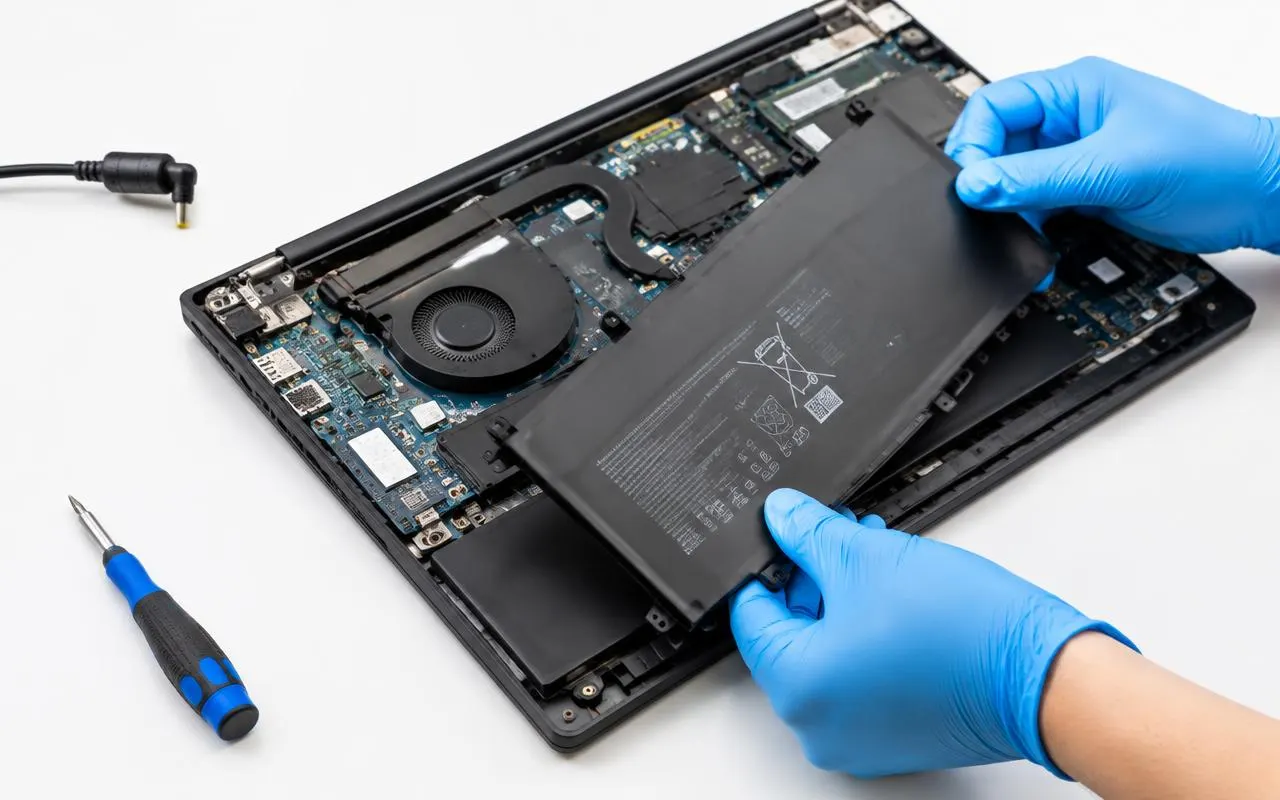
It makes less sense when the laptop has other costly faults, or when a battery for your model is hard to source. Many thin laptops have the battery screwed or glued inside the case, so this is a technician’s job rather than a quick swap. Insist on a battery that matches your model’s part number, voltage and connector; cheap unbranded cells often hold less charge than claimed and can be a safety risk.
To make a new battery last, keep the laptop out of hot cars and direct sun, keep the vents clear, use battery-care mode if you mostly work plugged in, and avoid running it down to 0% regularly.
If you are near North Dum Dum, our battery and power jack replacement service starts with a test of the battery, charger and port, so you only pay for the part that is actually at fault.
Many laptop batteries give a few years of regular use before the drop in runtime becomes obvious. Heat, charging habits and the number of charge cycles matter more than age alone, so a battery report is the best way to know where yours stands.
No. A swollen lithium-ion battery can damage the case, trackpad and screen, and in the worst case can overheat or catch fire. Stop using and charging the laptop and have the battery removed by a technician.
Modern laptops stop charging when the battery is full, so it will not "overcharge". Sitting at 100% in a warm room does speed up wear, though, so turn on your laptop's battery-care or charge-limit setting if it has one.
Fitting the battery is usually quick once the correct part is in hand. If it has to be ordered for your model, it takes longer. Our typical turnaround is same day to 3 working days, confirmed in your quote.
No. The battery and your storage drive are separate parts, so your files and settings are not touched. A backup before any repair is still good practice.
We test the battery, charger and port first, then quote a matched replacement with a 90 days on parts and labour warranty.